
 May 14th, 2020
  Prerana Kasar
 Bootstrap Tooltip
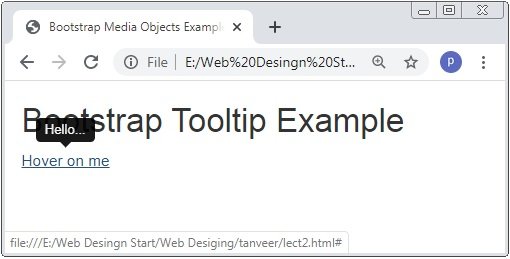
Bootstrap tooltip is a javascript function which is used to create the small pop-up box which is appeared when the mouse is moved over on an element. The attribute data-toggle with the value tooltip is used to create the tooltip.
Example: 1 Bootstrap Tooltip Example
<!DOCTYPE html>
<html>
<head>
    <title>Bootstrap Media Objects Example</title>
    <!-- link the bootstrap online or through CDN -->
    <link rel="stylesheet" href="https://maxcdn.bootstrapcdn.com/bootstrap/3.3.7/css/bootstrap.min.css" integrity="sha384-BVYiiSIFeK1dGmJRAkycuHAHRg32OmUcww7on3RYdg4Va+PmSTsz/K68vbdEjh4u" crossorigin="anonymous">
    <script src="https://ajax.googleapis.com/ajax/libs/jquery/3.4.1/jquery.min.js"></script>
 	<script src="https://maxcdn.bootstrapcdn.com/bootstrap/3.4.1/js/bootstrap.min.js">
  	</script>

     <script>
     	$(doccument).ready(function(){
     		$('[data-toggle="tooltip"]').tooltip();
     	});
     </script>
</head>
<body>
	<div class="container">
		<h2>Bootstrap Tooltip Example</h2>
		<a href="#" data-toggle="tooltip" title="Hello...">Hover on me</a>
	</div>
</body>
</html>
On the above code a script is wriiten in the head section to create the tooltip. When you scroll the cursor over the <a> element than the tooltip element will be displayed.
Bootstrap Tooltip Position
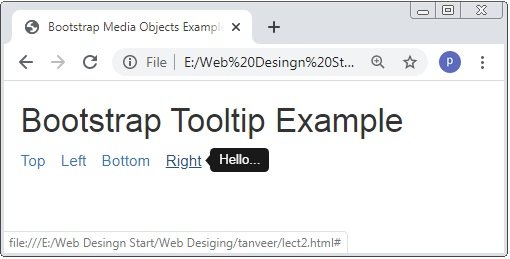
Bootstrap have data-placement attribute to change the position of the tooltip. The default position of tooltip is top of the element. With data-placement attribute we set top, right, left, bottom position of element.
Example: 2 Bootstrap Tooltip Positioning Example
<!DOCTYPE html>
<html>
<head>
    <title>Bootstrap Media Objects Example</title>
    <!-- link the bootstrap online or through CDN -->
    <link rel="stylesheet" href="https://maxcdn.bootstrapcdn.com/bootstrap/3.3.7/css/bootstrap.min.css" integrity="sha384-BVYiiSIFeK1dGmJRAkycuHAHRg32OmUcww7on3RYdg4Va+PmSTsz/K68vbdEjh4u" crossorigin="anonymous">
    <script src="https://ajax.googleapis.com/ajax/libs/jquery/3.4.1/jquery.min.js"></script>
 	<script src="https://maxcdn.bootstrapcdn.com/bootstrap/3.4.1/js/bootstrap.min.js">
  	</script>
</head>
<body>
	<div class="container">
		<h2>Bootstrap Tooltip Example</h2>
		<ul class="list-inline">
			<li><a href="#" data-toggle="tooltip" data-placement="top" title="Hello...">Top</a></li>
			<li><a href="#" data-toggle="tooltip" data-placement="left" title="Hello...">Left</a></li>
			<li><a href="#" data-toggle="tooltip" data-placement="bottom" title="Hello...">Bottom</a></li>
			<li><a href="#" data-toggle="tooltip" data-placement="right" title="Hello...">Right</a></li>
		</ul>
	</div>

	<script>
		$(document).ready(function(){
  		$('[data-toggle="tooltip"]').tooltip();
		});
</script>
</body>
</html>
On the above code the attribute data-placement is used to set the position top, bottom, right, and left side of the element.
 Posted in
  Tags:
Tags: